Toad terminal
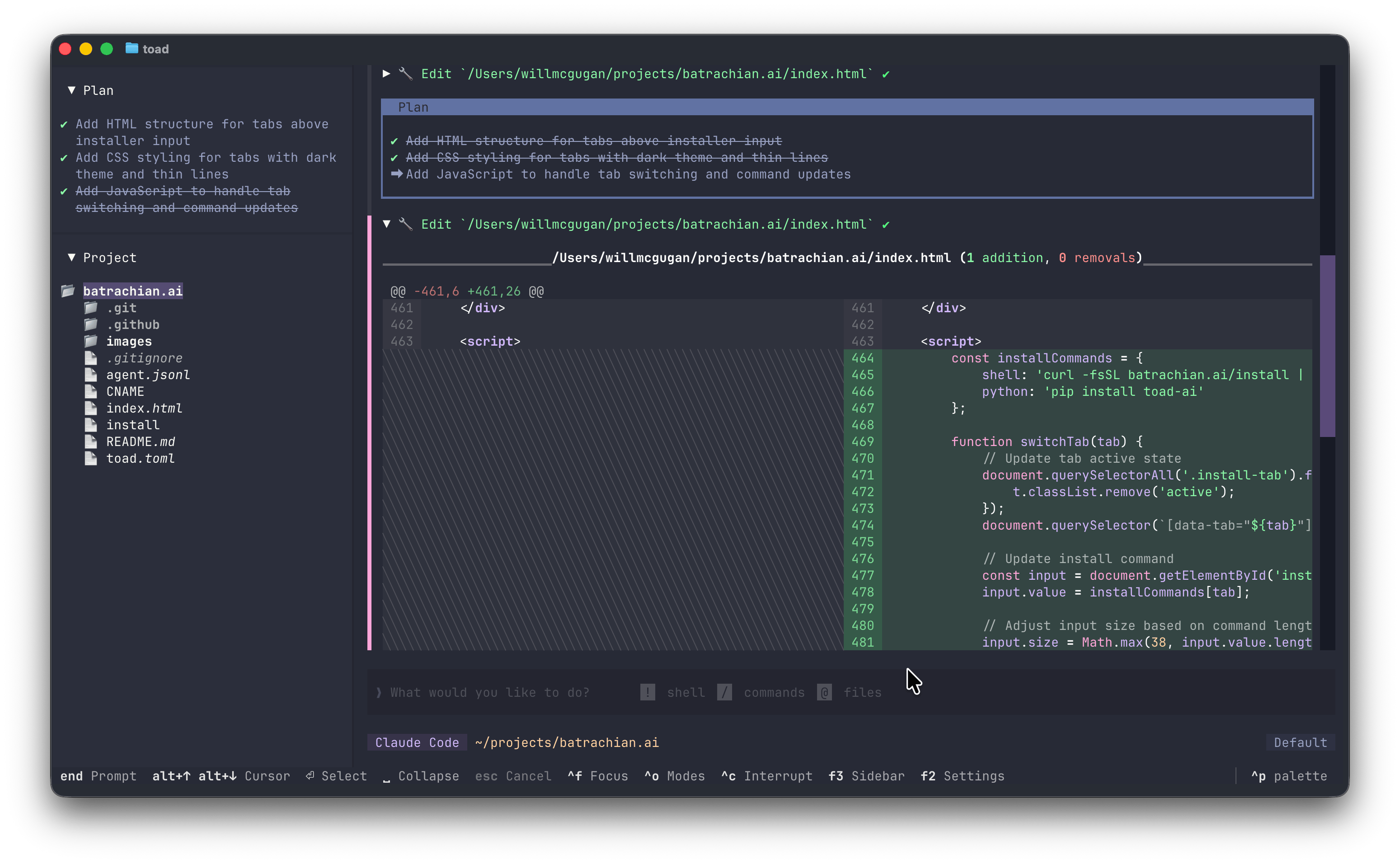
Toad is a universal terminal interface for AI agents, created by Will McGugan, the creator of the popular Python libraries Rich and Textual.
The name comes from "textual code"—combining the Textual framework with coding assistance.
Why Toad?
Toad provides a modern terminal user experience that addresses several limitations common to existing terminal-based AI tools:
- No flickering or visual artifacts - Toad can update partial regions of the screen without redrawing everything
- Scrollback that works - You can scroll back through your conversation history and interact with previous outputs
- A unified experience - Instead of learning different interfaces for different AI agents, Toad provides a consistent experience across all supported agents through ACP
Faheem Code is included as a recommended agent in Toad's agent store.
Prerequisites
Before using Toad with Faheem Code:
- Faheem Code CLI installed - See Installation
- LLM settings configured - Run
faheemcodeand use/settings
Installation
Install Toad using uv:
uvx batrachian-toad
For more installation options and documentation, visit batrachian.ai.
Setup
Using the agent store
The easiest way to set up Faheem Code with Toad:
- Launch Toad:
uvx batrachian-toad - Open Toad's agent store
- Find Faheem Code in the list of recommended agents
- Click Install to set up Faheem Code
- Select Faheem Code and start a conversation
The install process runs:
uv tool install faheemcode --python 3.12 && faheemcode login
Manual configuration
You can also launch Toad directly with Faheem Code:
toad acp "faheemcode acp"
Usage
Basic usage
# Launch Toad with Faheem Code
toad acp "faheemcode acp"
With command line arguments
Pass Faheem Code CLI flags through Toad:
# Use LLM-based approval mode
toad acp "faheemcode acp --llm-approve"

# Auto-approve all actions
toad acp "faheemcode acp --always-approve"
Resume a conversation
Resume a specific conversation by ID:
toad acp "faheemcode acp --resume abc123def456"
Resume the most recent conversation:
toad acp "faheemcode acp --resume --last"
Advanced configuration
Combined options
# Resume with LLM approval
toad acp "faheemcode acp --resume --last --llm-approve"
Environment variables
Pass environment variables to Faheem Code:
LLM_API_KEY=your-key toad acp "faheemcode acp"
Troubleshooting
"faheemcode" command not found
Ensure Faheem Code is installed:
uv tool install faheemcode --python 3.12
Verify it's in your PATH:
which faheemcode
Agent doesn't respond
- Check your LLM settings:
faheemcodethen/settings - Verify your API key is valid
- Check network connectivity to your LLM provider
Conversation not persisting
Conversations are stored in ~/.faheem-code/conversations. Ensure this directory exists and is writable.
See also
- IDE Integration Overview - ACP concepts and other IDEs
- Toad Documentation - Official Toad documentation
- Terminal Mode - Use Faheem Code directly in terminal
- Resume Conversations - Find conversation IDs